Social Media Video Templates: How to Pick and Use Them
Learn how to choose social media video templates by platform, customize them for your brand, and ship polished Reels, Shorts and ads faster, with AI thumbnails.
A good social media video template is a reusable structure: the aspect ratio, pacing, text positions and sound slots are decided, so you only swap in your footage, copy and brand. Pick one built for your platform’s format, apply your brand kit, keep key elements out of the interface zones, and you can publish polished videos in a fraction of the usual time. If you want the template and the footage to come from one place, the AiEnvoy Templates Library pairs ready-made structures with AI video, music, image and dubbing tools in one studio.
TL;DR
- Choose the template by platform first: 9:16 vertical for Reels, TikTok and Shorts, 16:9 horizontal for long-form YouTube.
- Apply your brand kit (fonts, colors, logo) to the template’s structure, and keep text clear of the app’s buttons and captions.
- Match the template to the goal: how-to tips, product showcases, behind-the-scenes and testimonials each need a different skeleton.
- Check music rights, caption readability and export settings before you publish.
- For YouTube thumbnails, start from a 16:9 image at 3840 x 2160 and test that it reads at small size.
Table of Contents
- What social media video templates actually are
- Pick the format for the platform before the style
- Match the template to the goal
- How to customize a template without making it look like a template
- What to check when you add music, effects and exports
- Making YouTube thumbnails with AI
- Where AI changes the template workflow
- Mistakes that make templated videos underperform
- How to choose a template library
- Start with a template library that makes the content too
- FAQ
- Sources
What social media video templates actually are
A template is a finished video with the decisions already made. Think of it as a layout for time instead of space: a hook in the first seconds, a few content beats, a closing call to action. Text styles, transitions, background, and the slots for clips or images are all in place.
That matters because most of the work in short-form video is not creativity. It is rebuilding the same scaffolding for every post: sizing the canvas, placing a title, timing the captions, matching the colors. A template removes that rebuild so you spend your time on the part only you can do, which is the message.
Templates come in a few broad types:
- Editor project files, which you open in desktop editing software and customize layer by layer.
- Browser-based templates, where you drop in clips and edit text on a simplified timeline.
- AI-driven templates, where the structure is paired with generated footage, voice, music or images, so you may not need source clips at all.
The third type is the one that changes the economics for small teams. When the template also generates the visuals, you are not limited to the footage you happened to shoot.
Pick the format for the platform before the style
The most common template mistake is choosing a look you love in the wrong shape. Fix the format first.
| Platform and placement | Format to start from | Notes |
|---|---|---|
| Instagram Reels, TikTok | 9:16 vertical | Full-screen; interface overlays cover the edges |
| YouTube Shorts | 9:16 vertical | Shorts can be vertical or square |
| Long-form YouTube | 16:9 horizontal | Suits most long videos |
| LinkedIn video ads | 1:1, 4:5, 9:16 or 16:9 | All four ratios are supported |
| X | Any of the above | Standard accounts are limited to 140 seconds and 512 MB per video |
The working rule from social video production guidance is simple: 9:16 templates for Reels, TikTok and Shorts, 16:9 for long-form YouTube. Platforms change their limits, so before a campaign launch, confirm the current specs in each platform’s own help center, especially duration and file size.
If one idea has to run everywhere, build it once in the vertical format and then adapt. A vertical master gives you the most freedom, because cropping to a square is easier than building a vertical video out of a horizontal one.
Match the template to the goal
Once the shape is right, choose the structure by what the video has to do. Four structures cover most social calendars, and the same production guide lists them as the main template use cases.
How-to and tip videos
A numbered or step-by-step template works because viewers can see the end from the start. Look for a template with a strong title card, a visible step counter and room for short captions. Keep each step to one idea.
Product showcases
These need space for close-ups, a price or feature callout and a clear last frame. For a marketer running a campaign, this is the template you will reuse most, so build a version with your brand colors locked in.
Behind-the-scenes
Looser pacing, more camera-roll footage, and light branding. The template mostly supplies a consistent opening and caption style, so the content feels like part of a series.
Testimonials
Choose a layout with a generous caption area and a spot for a name, role and logo. Captions carry most of the viewing experience, since many people watch without sound.
How to customize a template without making it look like a template
Every competitor in your feed can download the same template. What separates your post is the customization. Work through these steps in order.
- Apply the brand kit first. Set your fonts, colors and logo on the template’s structure before you add content. Doing this first stops half-branded versions from circulating in your drafts.
- Respect the safe zones. Platform interfaces draw buttons, captions and account names over the video. Content placement should avoid those overlays on TikTok and Reels. Keep titles and faces away from the bottom edge and the right side, and preview the post in the app before it goes live.
- Rewrite the hook. The first line of text is the part most templates leave as a placeholder. Say the specific payoff in your own words.
- Replace stock-looking footage. The more generic the visual, the more the template shows. Use your own product shots, your own screen recordings, or generated visuals made for the specific idea.
- Cut to the shortest version. Templates have default durations. Trim any beat that does not earn its seconds.
- Save your version as a new template. Your customized file becomes the starting point for the next ten posts.
The weak point in this routine is step 4. Template libraries are full of placeholder footage that does not match your product. That is where an AI studio helps: you describe the scene, generate it, and the template carries your idea instead of someone else’s stock clip.
What to check when you add music, effects and exports
Templates make publishing so fast that the checks tend to get skipped. Build them into the routine.
- Music rights. Confirm that the track is licensed for the way you publish it, especially for paid ads and business accounts, which often have different music libraries from personal accounts. A track you generate for your own use avoids hunting through catalogs.
- Sound balance. Voice should sit clearly above music. If the template ships with a loud music bed, lower it before export.
- Effects restraint. Transitions that look good in a preview can feel busy on a phone. One transition style per video is plenty.
- Caption readability. Check contrast and size on a phone screen, not a desktop monitor.
- Export settings. Export at the template’s native ratio, in a common format such as MP4, and keep the file inside the platform’s limits.
- Language reach. If your audience speaks more than one language, dub the finished video instead of rebuilding the template for each market.
Making YouTube thumbnails with AI
Thumbnails are the template problem in still form: same structure, new content each time. AI can speed up the image, but the clarity rules stay the same.
Start with YouTube’s specs. YouTube’s help page says custom thumbnails should ideally be 3840 x 2160 pixels at 16:9, and Shorts thumbnails 2160 x 3840 at 9:16. The same page asks you to follow the Community Guidelines and to respect the image-format and file-size recommendations for your device.
Use YouTube’s own suggestions as a starting point. The page also describes Ask Studio, a feature that analyzes your video’s transcript and themes to suggest custom thumbnails. It is a quick source of ideas before you design your own.
Then build the image like this:
- Decide the one thing the thumbnail says. One subject, one short line of text, at most.
- Generate or transform the base image in the style that fits the channel. With the AiEnvoy AI Image Generator you can transform an image across artistic styles, which helps keep a consistent look across a series.
- Add three to five words of text in your brand font, with strong contrast against the background.
- Shrink it to a thumbnail-sized preview. If you cannot read it at that size, simplify.
- Export at the recommended resolution and keep the file within the size limit for your upload device.
Reusing the same layout across a channel is itself a thumbnail template, and it makes your videos recognizable in a feed.
Where AI changes the template workflow
Traditional templates solve layout. They do not solve content. You still need footage, a voiceover, music, and a version for each language. That is why teams juggle several apps for one post.
An all-in-one AI studio folds those steps together. In AiEnvoy, the AI Video Generator creates cinematic video from text or images using models such as Sora, Kling and Veo. The AI Music Generator produces tracks and songs. AI Video Dubbing translates and dubs a finished video into other languages with natural AI voices. The AI Video Clipper cuts long videos into short-form clips, and AI Characters lets you reuse a character profile, so a recurring presenter or mascot stays consistent from one video to the next. AutoPilot handles automated content creation pipelines for recurring formats.
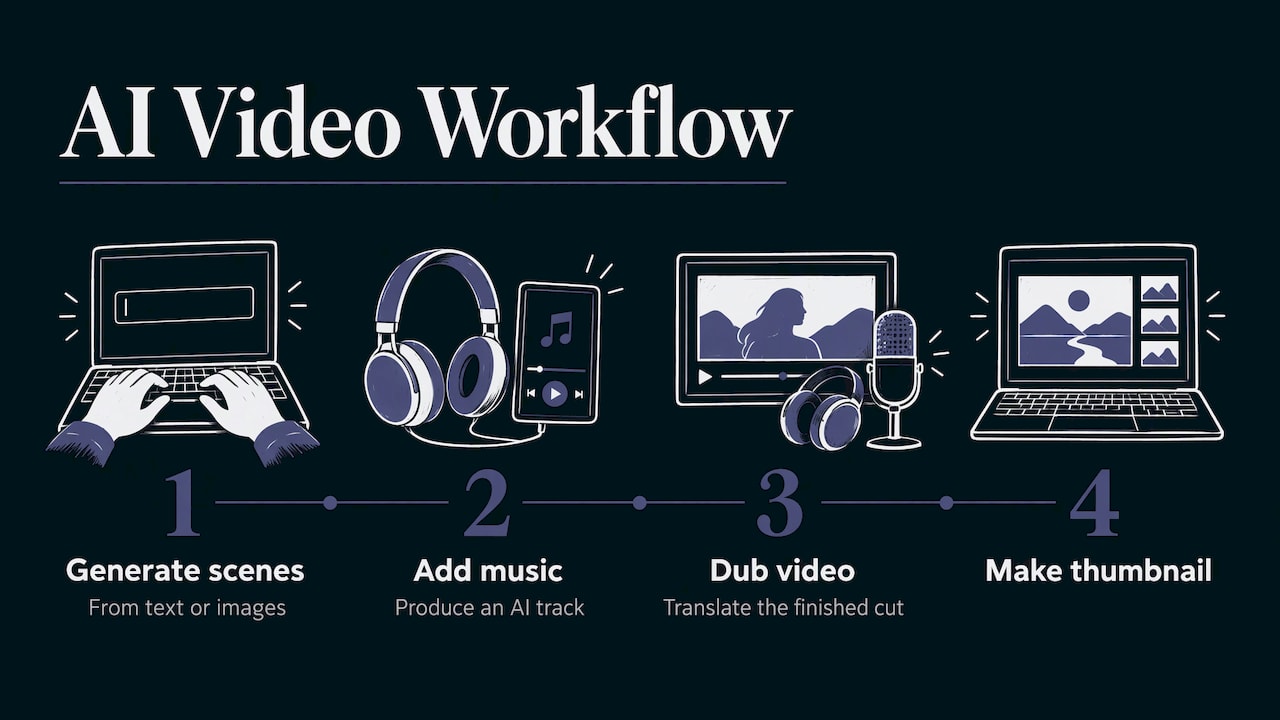
For a social media manager, the practical result is a single workflow for the whole template: generate the scenes, add a track, dub the finished cut, and make the thumbnail, without moving files between tools.
A worked example: a weekly product tip
Suppose you run social for a small software company and post one vertical tip video each week.
- Choose a 9:16 how-to template with a title card and three step slots.
- Apply your brand colors, font and logo once, then save it as your own template.
- Write the three steps as short captions.
- Generate a short visual for each step from a text prompt, or animate a screenshot from an image.
- Add a generated music bed and lower it under the voice.
- Check the safe zones in a draft preview.
- Export a vertical version, then dub it for any additional markets.
- Create a 16:9 thumbnail if the same tip is going to YouTube.
After the first week, only steps 3 to 5 change. That is what a template is for.
Mistakes that make templated videos underperform
- Using the template exactly as downloaded. If the sample text and stock footage survive, viewers recognize the template, not your brand.
- Ignoring the platform. A horizontal template cropped for Reels cuts off text. Start from the right ratio.
- Overloading the first second. Put one idea in the hook.
- Inconsistent branding. Three different fonts across a week of posts weakens recognition. Lock the brand kit in the template.
- Skipping the mobile preview. Many layout problems only show on a phone screen.
- Forgetting accessibility. Add captions and keep contrast high, so the video works muted and for viewers with low vision.
How to choose a template library
When you compare libraries, weigh these criteria against how you really publish:
- Does it cover your formats, including vertical 9:16 and horizontal 16:9?
- Can you apply a brand kit once and reuse it?
- Does it supply the footage, voice and music too, or only the layout?
- Can you produce other languages from the same video?
- Can you scale from one-off posts to a recurring pipeline?
A library that answers yes to all five turns templates from a design shortcut into a content system.
Our view: the template is the start, not the finish
We built AiEnvoy around a simple observation: a layout alone does not get a video made. Content creators and social teams still have to find footage, write a voiceover, source music, cut versions for each platform and translate for each audience. Each handoff between tools is a place where time disappears.
That is why we put the Templates Library next to the video generator, the music generator, the image generator, the clipper and dubbing in one studio, and why we added reusable AI Characters. A template then carries your idea from the first frame to the finished export, with a consistent presenter and a consistent look.
Our advice is to treat the template as the structure you commit to once, and let the studio generate the content that fills it each time. Your effort goes into the hook and the message, which are the parts viewers actually remember.
the author
Start with a template library that makes the content too
If you want to move from placeholder footage to finished, on-brand videos, browse the AiEnvoy Templates Library and pair a template with the studio’s video, music, image and dubbing tools. AiEnvoy offers a Free plan at 0 USD per month, plus Premium and Token Packs; see the pricing page for what each includes.
Developers building their own products can reach the same generation features through the AiEnvoy API, including text-to-video, image-to-video and dubbing.
FAQ
What size should social media video templates be?
Use 9:16 for Instagram Reels, TikTok and YouTube Shorts, and 16:9 for long-form YouTube. LinkedIn video ads accept 1:1, 4:5, 9:16 and 16:9. Always confirm the current limits in the platform’s help center before a big launch.
Can I make the same video work on every platform?
Yes, if you plan for it. Build a vertical master with key text inside the safe area, then export adapted versions for other ratios. Dubbing the finished video lets the same cut reach audiences in other languages.
How do I make YouTube thumbnails with AI?
Generate or transform a base image, add a few high-contrast words, and export at 3840 x 2160 in 16:9 (2160 x 3840 for Shorts), as YouTube recommends. Shrink the preview to check that it still reads at small size. Make sure the image follows YouTube’s Community Guidelines.
How do I keep templated videos from looking generic?
Apply your brand kit first, rewrite the hook in your own words and replace placeholder footage with visuals made for your idea. Save the customized version as your own template so every later video starts from your look.
Do I need editing experience to use video templates?
No. A template supplies the structure, so the main tasks are swapping text, choosing visuals and checking the preview. AI generation tools reduce the need for source footage as well.
Sources
- Video Templates for Social Media: Faster Content Production
- Video marketing for social media: specs, formats, and a plan
- Social video formats guide
- YouTube Help: Add custom thumbnails
Recommended
Put this workflow into practice with AiEnvoy
Create videos, AI music, and multi-language dubbing with Sora, Kling, Veo, and Seedance 2.5 — or connect our Developer APIs.