How to Create Training Videos: A Practical Guide for 2026
Create training videos step by step: set one measurable goal, write a tight script, generate visuals and narration with AI, then check captions and accuracy.
To create a training video that works, start with one observable learning goal, write a script that follows the learner’s job task, produce visuals and narration, and review the result for accuracy and captions before anyone sees it. AI now handles much of the production: a text-to-video model can generate scenes, a synthetic voice can narrate, and dubbing can localize the finished video. With AiEnvoy’s AI Video Generator, which brings Sora, Kling and Veo into one studio, you can go from a written script to finished footage without a camera crew. The planning steps below decide whether the video teaches anything.
TL;DR
- Begin with a performance problem and one measurable goal, such as “the learner can complete this task”, not “the learner understands this topic”.
- Write the script around the job task, read it aloud, and aim for about 130 words per minute.
- Use AI for the slow parts: scene generation, narration and multi-language versions. Keep a subject matter expert in charge of accuracy.
- Edit captions, check the final file in a separate player, and publish short videos, ideally three to 15 minutes for a how-to.
- Build one repeatable workflow so your second video takes a fraction of the time of your first.
Table of Contents
- Step 1: Define the problem, the audience and one goal
- Step 2: Choose the format and write a short brief
- Step 3: Write the script and storyboard
- Step 4: Make the training video with AI
- Step 5: Review for accuracy before anything ships
- Step 6: Edit, caption and test
- Step 7: Localize for every team
- Step 8: Publish, measure and refresh
- How to make the first video fast
- Where AiEnvoy fits
- Our perspective
- FAQ
- Sources
Step 1: Define the problem, the audience and one goal
Before you open any tool, check that video is the right fix. A November 2026 guide from eLearning Industry tells teams to begin with the performance problem and ask whether the cause is really a knowledge or skill gap, rather than a process, tooling, incentive or support failure. A video cannot repair a broken process.
If it is a skill gap, describe the learner: their role, what they already know, where they work, which device they watch on, their language and their accessibility needs. The same guide advises writing one observable goal for what the learner will do after watching. “Complete a refund in the CRM in under two minutes” is a goal. “Understand the CRM” is not.
A quick test for your goal: could a manager watch someone after the video and tick a box? If not, rewrite it.
Step 2: Choose the format and write a short brief
Pick the format that fits the goal. Typical options for training:
| Format | Best for | AI fit |
|---|---|---|
| Short demonstration | One task, one tool or one procedure | Generated scenes plus narration |
| Scenario video | Customer conversations, safety situations, soft skills | Generated characters and settings |
| Explainer | Policies, concepts, product knowledge | Generated visuals over a script |
| Localized version | Teams in several countries | AI dubbing of the finished video |
Then write a one-page brief before scripting. A professional training-industry production guide lists what it should cover: the business need, audience, measurable objectives, modality, distribution, budget and deadline. Organize the content around the learner’s job tasks, not around your org chart or your slide deck.
Keep it short. The University of California’s communications toolkit suggests short how-to videos of three to 15 minutes and advises narrowing the topic before production. If your topic is bigger, split it into a series of single-task videos.
Step 3: Write the script and storyboard
The script is where training videos succeed or fail, and it is the step AI speeds up most safely, because you can draft and revise text for pennies of effort before spending any generation credits. AiEnvoy’s AI writing tools give you chat and content helpers for turning your source documents into a first script draft that your expert then corrects.
Use a structure that matches how adults learn a task. The eLearning Industry guide recommends six parts:
- Explain why the task matters.
- State what the learner will be able to do.
- Demonstrate the process.
- Highlight decisions and exceptions.
- Prompt practice or action.
- Summarize the takeaway.
Then build a storyboard. Columbia University’s guidance on educational video recommends mapping spoken text, visuals, design choices and sequence in one document, reading the script aloud, and targeting about 130 words per minute. At that pace a five-minute video is roughly 650 words. Use a conversational tone and rewrite any sentence you stumble over.
Vanderbilt’s video development workflow uses a storyboard with four columns: frame description, on-screen representation, voiceover and required assets. It also records a placeholder voiceover first to establish timing before final narration and visuals. With AI narration this is easy: generate a rough voice track, listen, and fix the timing before you produce a single scene.
A sample storyboard row
| Frame | On screen | Voiceover | Assets |
|---|---|---|---|
| 3 | Support agent opens a customer record and selects “Refund” | “Open the record, then choose Refund. Check the order number before you confirm.” | Interface screenshot, agent character |
Write every row this way and you have a shot list. The University of California workflow does the same: build a shot list from the storyboard and organize assets by type.
Step 4: Make the training video with AI
Here is how the AI production pass works, scene by scene.
Generate the visuals
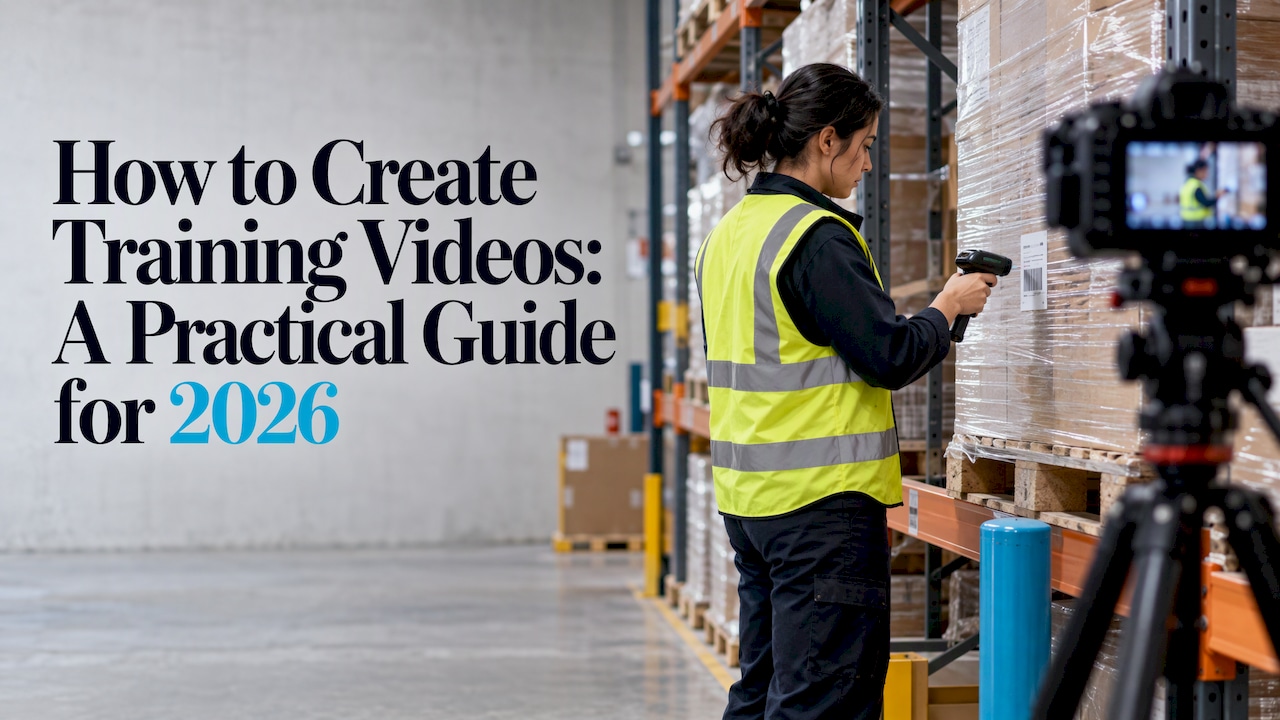
Take each storyboard row and turn its frame description into a prompt: who is in the shot, what they do, where, and how the camera sees it. Keep prompts concrete. “A warehouse worker in a yellow vest scans a pallet label, medium shot, bright indoor light” gives a model something to work with; “a safety scene” does not.
The AiEnvoy AI Video Generator creates cinematic videos from text or from images, so you can start from a prompt or from a still such as a product photo or an interface screenshot. If you need still graphics for title cards or diagrams, the AI Image Generator transforms images into different styles so your slides and your footage can look related.
Keep the same people on screen
A training series with a different face in every video feels disjointed. Reusable AI character profiles let you define a character once and keep them consistent across scenes and videos, which suits a recurring “trainer” or a customer persona in scenario training.
Add narration
Record narration separately from the visuals. A screencast workflow from a working video producer advises leaving pauses around sections to ease synchronization and adding visual effects only after audio and visuals are aligned. The same logic applies to generated clips: lock the voice track first, then cut footage to it.
Add a music bed, sparingly
Background music can lift an intro and outro, but it competes with narration. If you use it, keep it quiet and instrumental. The AI Music Generator creates tracks you can use for exactly that.
Assemble and name everything
Save each clip in one folder with descriptive filenames, for example 03-open-record-refund-v2.mp4, and record several takes where a prompt is uncertain. Export a clearly named final version. It is dull advice, and it saves hours when someone asks for a change six months later.
Step 5: Review for accuracy before anything ships
AI-generated footage looks convincing, which is the risk: a smooth clip of the wrong button is still wrong. A framework for AI training video assigns clear ownership: the subject matter expert owns accuracy, approving the script and confirming nothing in the visuals misrepresents the process; the learning designer owns the structure; and the production owner handles generation and the asset library. It also warns that quality drops when one person tries to do all three.
For a small team, that translates to a review checklist:
- Does every step in the video match the current procedure, in the right order?
- Do the screens, equipment and locations shown exist in your organization, or are they clearly framed as illustration?
- Do the people shown reflect your actual workforce?
- For safety, medical or compliance content, has a qualified person in that field signed off on every instruction? For regulated procedures, such as clinical steps, rely on your organization’s approved protocol and a qualified clinician rather than on generated footage alone.
Where interface detail matters, use real screenshots or a real screen recording for the click-by-click portion and use generated scenes for context, scenarios and introductions.
Step 6: Edit, caption and test
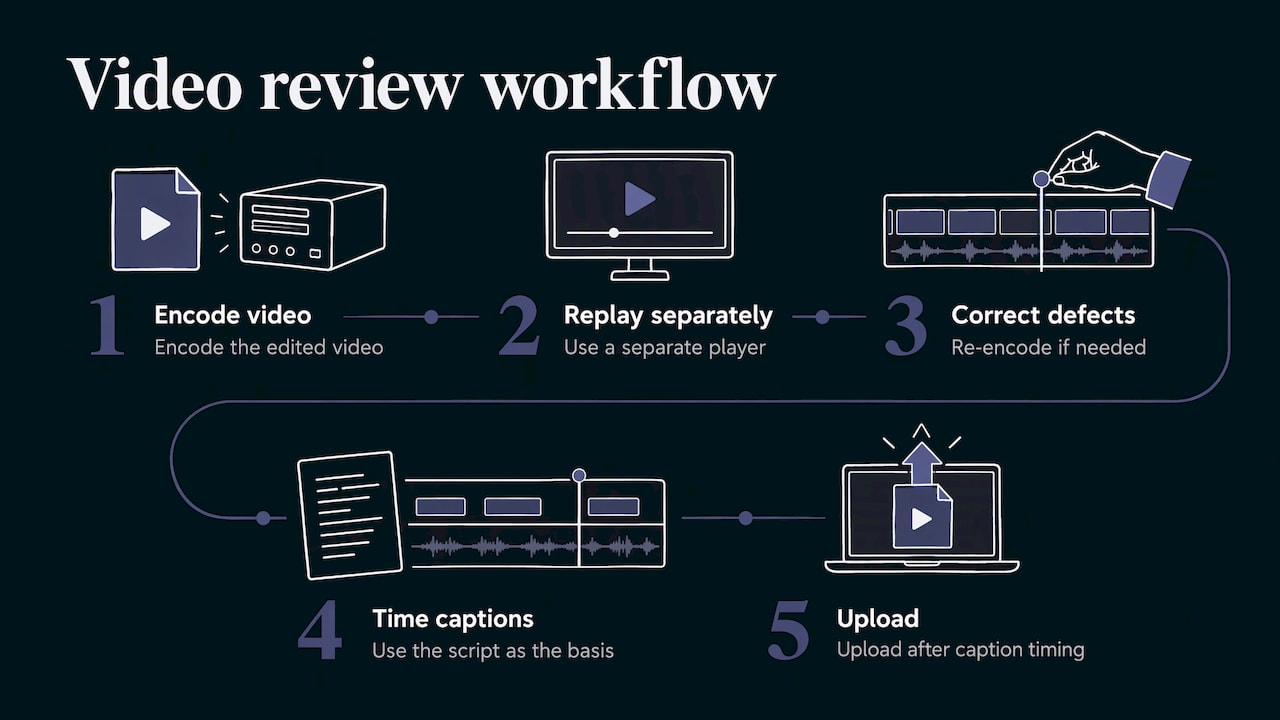
The University of California workflow says to encode the edited video, replay it in a separate player, correct defects and re-encode if needed, then use the script as the basis for closed captions before upload. Your script is already written, so captions are mostly a matter of timing it.
If you use automatic captions, edit them. University of Aberdeen guidance states that auto-generated captions are machine-generated and should be corrected for accuracy, and that a transcript should include speech, meaningful visual information, on-screen words and important sound effects.
Captions are also often a requirement, not a courtesy. A digital accessibility guide from the University of Wisconsin-Milwaukee explains that under WCAG 2.1, prerecorded video with synchronized audio typically needs captions, and may need audio description when the narration does not describe the visuals. If your training reaches employees in the US public sector or contractors with accessibility obligations, confirm your requirements with your compliance or legal team.
Step 7: Localize for every team
A training library written in one language leaves part of your workforce behind. Instead of re-recording, dub the finished video. AiEnvoy AI Video Dubbing translates and dubs videos into multiple languages with natural AI voices, and developers who want to build this into a learning platform can use the AI Dubbing API, which dubs videos into 50+ languages. Have a native speaker review translated terminology, especially product names and safety terms, before release.
Step 8: Publish, measure and refresh
Publish where learners already work: your learning management system, intranet or onboarding checklist. Measure the thing you defined in Step 1: task completion, error rates, support tickets, time to competence. View counts alone say little.
When a procedure changes, edit the script and regenerate only the affected scenes. That is the main advantage of an AI workflow over a filmed one: updating one step does not mean reshooting the whole video. For teams producing a steady stream of content, AutoPilot automates content creation and scheduling, which helps once your format is settled.
How to make the first video fast
A realistic first project: one five-minute video on one task.
- Write the goal and a half-page brief (30 minutes).
- Draft a 650-word script with the six-part structure, then have your expert correct it.
- Build a storyboard table with 8 to 12 rows.
- Generate the scenes, narration and any music.
- Review with the checklist above, caption, and test in a separate player.
- Publish, collect feedback from five learners, and revise.
The second video reuses the same characters, brief template and storyboard format, so it goes much faster.
Where AiEnvoy fits
AiEnvoy puts video generation, image transformation, music, dubbing, writing tools and reusable characters in one app, so the script, the scenes, the voice and the translated versions come from one place. You can start on the Free plan, which costs 0 USD per month, and see plans and Token Packs on the pricing page. The full list of tools is on the features page.
Teams that want to automate training content inside their own platform can use the Text-to-Video API and the AI Dubbing API.
Our perspective
Most training videos fail before production starts. The goal is vague, the script is a slide deck read aloud, and the video is judged on polish. We think the opposite order works: decide what the learner must do, write for that, then let the tools carry the production load.
That is why we built AiEnvoy as one studio rather than a pile of separate apps. Cinematic video from models like Sora, Kling and Veo, music, images, dubbing, writing tools and reusable character profiles all sit together, so a person with no production background can take a script and turn it into a finished, consistent series.
The time saved should go back into the work that matters: sharpening the goal, getting the expert’s review and testing with real learners. Used that way, AI does not lower the standard of training video. It makes a higher standard affordable for a small team.
the author
FAQ
How long should a training video be?
Keep it as short as the task allows. The University of California’s toolkit suggests three to 15 minutes for short how-to videos. If your subject takes longer, split it into several single-task videos so learners can find and rewatch the one step they need.
Can I make a training video with AI if I have no video experience?
Yes. The skills that matter are planning and writing, not editing. Define one goal, write a script and storyboard, then generate scenes and narration from your prompts. Have an expert review the result for accuracy before sharing it.
How many words should the script have?
Columbia University’s guidance targets about 130 words per minute of narration. A three-minute video needs roughly 390 words and a five-minute video about 650. Read the script aloud to check that it sounds natural.
Do training videos need captions?
Usually, yes. Under WCAG 2.1, prerecorded video with audio typically needs synchronized captions, and automatic captions should be edited for accuracy. Captions also help learners who watch without sound or in a second language.
How do I train people in several languages?
Produce the video once, then dub it. AI dubbing creates versions with natural AI voices in other languages, and a native-speaking reviewer should check technical terms before release.
Sources
- Training Videos: How To Create Effective Employee Learning, eLearning Industry
- The Beginner’s Guide to Making a Training Video
- Planning and Workflow, Communications Toolkit, University of California ANR
- Creating Effective Educational Videos, Columbia University
- Stages of the Video Development Process, Vanderbilt University
- Making Effective Tutorial Videos: Behind the scenes of a screencast
- AI Video for Training and Internal Communication, Toolshero
- Create a Talking Head Video, University of Aberdeen
- Captions, Transcripts or Audio Descriptions, UWM Digital Accessibility
Recommended
Put this workflow into practice with AiEnvoy
Create videos, AI music, and multi-language dubbing with Sora, Kling, Veo, and Seedance 2.5 — or connect our Developer APIs.