How to Create Sound Effects With AI for Your Videos
Learn how to create sound effects with AI for video: write better prompts, match timing, layer and mix, check licensing, and export clean audio.
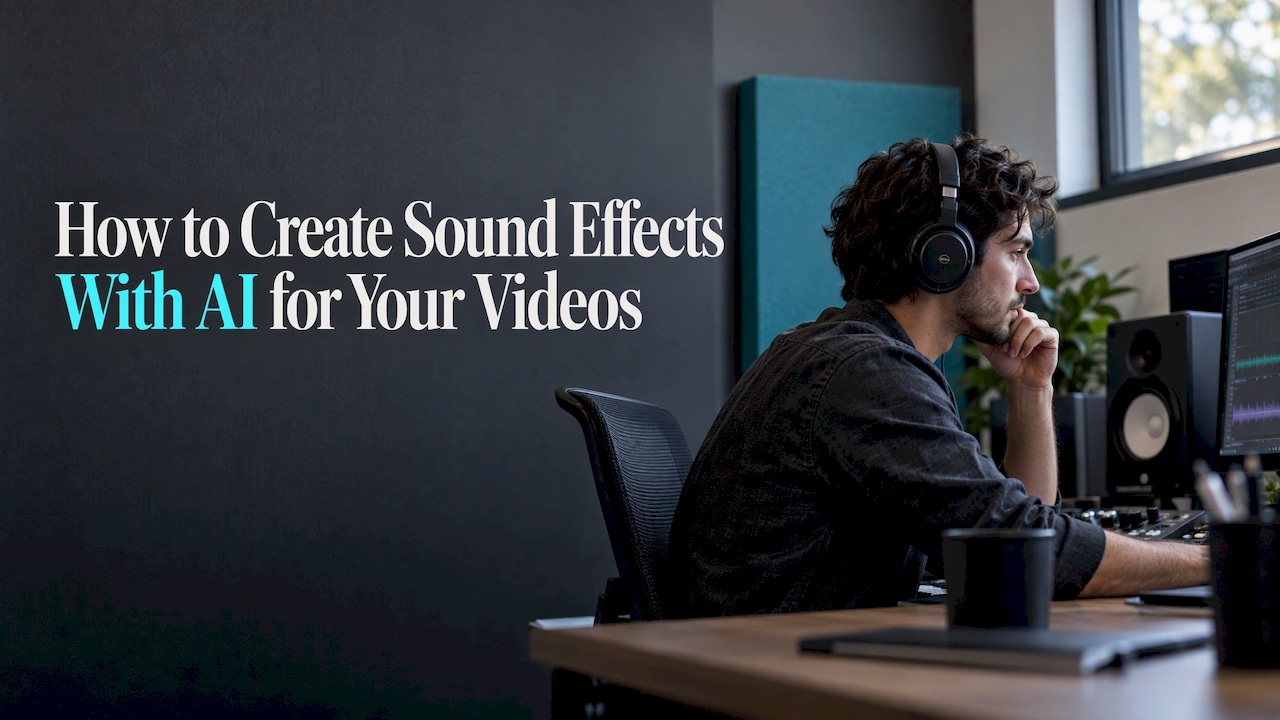
You create sound effects with AI by describing the sound in plain words, generating several takes, picking the one that fits the action on screen, then placing, layering and mixing it against your dialogue and music. The generating takes seconds. What separates a clip that feels produced from one that feels pasted together is the prompt, the timing and the mix, and that is where most of this guide goes. If you also make the picture and the music with AI, doing it all in one place saves the most time, which is why we build AiEnvoy around video, music, images and voice together.
TL;DR
- Write prompts like a sound designer: the object, the surface, the distance, the mood and the length, in one or two short sentences.
- Generate three to five takes per sound, then choose by timing against the picture, not by how impressive the sound is alone.
- Keep effects under dialogue and music: one clear “hero” sound per moment, with quiet ambience beneath.
- Export at 24-bit, 48 kHz WAV for editing, and check the licensing terms before a commercial release.
- Generating sound effects separately from the video gives you control over timing; generating them together is faster but less adjustable.
Table of Contents
- What AI sound effects add to a video
- Write prompts that produce usable sounds
- Generate, refine and choose the right take
- Sync, layer and mix with dialogue, music and picture
- Sound effects, music and voice should work as one track
- Export settings and a pre-publish quality check
- Usage rights: check before a commercial release
- Where AiEnvoy fits
- Our perspective
- FAQ
- Sources
What AI sound effects add to a video
Sound effects do three jobs. They make things on screen feel physical (a door that thuds, a cup that clinks), they build a space (the hum of a kitchen, wind on a rooftop), and they punctuate edits (a whoosh on a transition, a riser before a reveal). Silent footage, even beautiful footage, reads as unfinished.
AI changes the economics. Instead of searching a library for “footsteps gravel” and settling for the nearest match, you describe the exact sound you want and get several candidates. For creators publishing daily, marketers cutting campaign variants and social media managers working to a deadline, that removes the slowest part of finishing a video.
There are two broad approaches, and they behave differently:
| Approach | How it works | Best for | Trade-off |
|---|---|---|---|
| Text-to-sound generation | You describe a sound; the tool returns a standalone audio file | Precise effects, ambience, transitions, anything you need to time yourself | You place and sync the file |
| Audio generated with the video | The video prompt also produces sound that comes with the clip | Fast drafts and social clips | Less control over individual sounds |
The second approach has been around for a while. When Pika Labs added sound effects to its video generator in 2024, The Decoder reported that the audio was still generated independently of what the picture showed: the prompt produced the sound, which was then laid over the video. The same report noted that future models might analyze individual frames and generate picture and sound in one step. The practical lesson holds either way: audio that is generated alongside a clip is a starting point, and you still check it against the picture.
Write prompts that produce usable sounds
A vague prompt gives a vague sound. “Explosion” could return a cartoon pop or a distant rumble. The fix is to say what a sound editor would say. A reliable formula has five parts:
- The source: what makes the sound (a leather boot, a ceramic mug, a servo motor).
- The action: what it is doing (stepping, sliding, snapping shut).
- The surface or space: where it happens (wet concrete, small tiled bathroom, open field).
- The perspective: close, mid or far, and whether it echoes.
- The length and character: a single hit, a loop, a slow fade, soft or sharp.
Prompt examples by type
Ambience (needs to loop or run long):
- “Quiet coffee shop in the morning, low murmur of three or four people, espresso machine hissing now and then, soft cups on saucers, 20 seconds, no music.”
- “Night street after rain, distant traffic, occasional water dripping from a gutter, calm.”
Movement and foley (tied to a body or object):
- “Single footstep of a leather boot on wet concrete, close microphone, dry, no echo.”
- “Cotton jacket zipper pulled up quickly, close, 1 second.”
Impacts and hits (short and sharp):
- “Heavy wooden door slamming in a large empty hall, long natural reverb tail.”
- “Glass bottle set down hard on a metal bar, one clean hit.”
Transitions and product moments:
- “Fast cinematic whoosh, left to right, medium length, ends with a soft low thump.”
- “Soft digital chime for an app notification, bright, short, no echo.”
Four prompt habits that save time
- Say what to leave out. Adding “no music, no voices” keeps ambience clean enough to mix under dialogue.
- Ask for one sound at a time. A prompt for “a busy market with a dog barking and a car horn” gives you one fused file you cannot rebalance. Generate the market bed, the dog and the horn separately.
- Match length to the job. Request a one-second hit for an impact and a 15 to 30 second bed for ambience, so you are not trimming or looping awkwardly.
- Keep a prompt log. When a prompt gives you a door slam you love, save the wording. Your next ten videos will sound consistent.
Generate, refine and choose the right take
Treat the first result as a draft. Generate three to five variations of each sound, then audition them against the picture, with your video playing, rather than in isolation. A sound that is satisfying alone can be wrong in context: too bright for a moody scene, too long for a quick cut, too busy for a shot with dialogue.
When choosing, run through four questions:
- Does the attack land on the frame? An impact should begin at the exact moment of contact. If the best-sounding take has a slow build, trim into it or pick another.
- Does it match the space? A footstep recorded with heavy echo will feel wrong in a small room. Adjust the prompt (“dry, close”) and regenerate.
- Is it believable at the scale on screen? A small object should not produce a huge sound.
- Does it compete with something? If a take has a lot of midrange energy, it will fight with speech. Choose the calmer one.
Refine by changing one thing at a time. If the sound is too sharp, add “soft” or “muffled.” If it is too empty, name the room. Changing three words at once leaves you guessing which one helped.
If you build game assets or work in a retro engine, a browser-based audio generator library is another route to short, loopable effects for interactive projects.
Sync, layer and mix with dialogue, music and picture
Sync to the picture
Place each effect so its first audible moment sits on the visual cue. Zoom into the timeline until you can see single frames, then nudge the clip. Two habits help:
- Pre-roll sounds that build. A riser or a whoosh should start before the cut and peak at it.
- Cut the silence off the start. Many generated files begin with a fraction of a second of quiet. If the effect feels late, that is usually why.
If you are working with a sound designer or post house, sync reference matters. One professional delivery guide describes using a two-pop at the head and a tail-pop at the end of a program so that sync can be set and verified when a film moves between production stages, which you can read in this audio delivery guide. For a social clip you edit yourself, simply play the final export back and watch for drift.
Layer for depth
One generated file rarely sounds as full as a real moment. Build a sound from layers:
- A body layer: the main sound, such as the door slam.
- A detail layer: a small secondary sound, such as a latch rattle.
- A tail or air layer: a soft room tone that glues the sound into the scene.
Keep the layers slightly offset by a few frames so they do not stack into a single flat hit.
Mix by priority
A video mix works on a hierarchy. Dialogue or voiceover comes first and stays clear. Then the one effect that matters most in that moment. Then music. Then ambience, which should be felt more than heard.
Practical starting points:
- Lower music and ambience under speech rather than raising speech over everything.
- Let only one “hero” effect stand out at a time. If a whoosh, an impact and a riser all play at full level, none of them reads.
- Use a gentle low-cut filter on ambience and non-bass effects so they do not muddy the voice.
- Add a short fade at the start and end of every clip to avoid clicks.
Finally, listen on more than one device: studio headphones, a phone speaker and earbuds. Most social video is heard on phones, so if your effects vanish or distort there, adjust.
A word on loudness targets. Broadcast in Europe is normalized to a program loudness of -23 LUFS under EBU R128, a standard worth knowing. Online platforms apply their own targets, so check the current upload guidance of the platform you publish on instead of assuming one number.
Sound effects, music and voice should work as one track
The most common mistake with AI audio is treating each element as a separate job done in a different tool at a different time. The effects are bright, the music is loud, and the voiceover was recorded somewhere else. The result sounds stitched.
Plan the soundscape before you generate anything. Decide the emotional tone of the video, then make sure all three layers serve it:
- Music sets the pace. Cut your effects to the beat where it feels natural, and leave gaps in the music where an effect needs room.
- Voice carries information. If you localize the video, every language version needs its own pass on timing, because translated speech runs longer or shorter than the original. A comparison of dubbing and subtitles helps you decide which suits an audience before you finalize the effects timing.
- Effects make the picture believable. They should never fight the voice for attention.
If you plan to extend a music bed to fit a longer edit, our guide on making an AI track longer without breaking it covers how to do that cleanly.
Export settings and a pre-publish quality check
Work in the highest quality you can, and compress only at the end.
- For editing and handoff: WAV, 24-bit, 48 kHz. That is the specification one post-production house gives for its delivery workflow in its audio delivery guide, and 48 kHz matches the sample rate of most video. Avoid editing with MP3s, since each re-export loses quality.
- For quick social drafts: a high-bitrate compressed file is fine, as long as you keep the WAV original.
Before you publish, run this checklist:
- Watch the whole video once with your eyes on the picture and listen only for sync.
- Watch it again with your eyes closed and listen for clicks, abrupt cuts, hiss and repeated sounds. A footstep that repeats identically four times sounds fake, so alternate between takes.
- Check that speech is intelligible on a phone speaker.
- Compare the loudness of your video to a few others on the platform. If yours is much quieter or louder, adjust the master level.
- Make sure no effect contains stray speech, a recognizable melody or something that sounds like another person’s voice.
Usage rights: check before a commercial release
Two questions matter when you publish AI-generated sound commercially: can you use it, and can you own it.
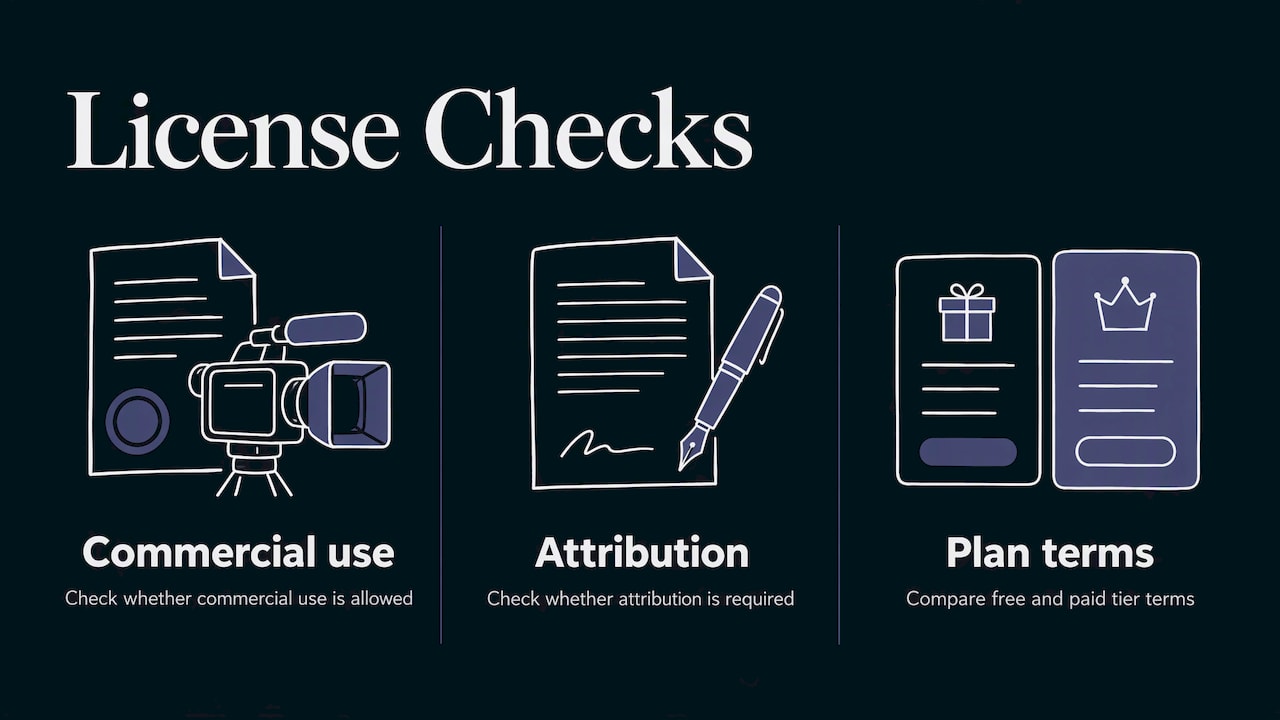
Can you use it? That depends on the terms of the tool and plan you generated it with. Read the license for the plan you are on: whether commercial use is allowed, whether attribution is required, and whether the terms differ between free and paid tiers. Save a copy of the terms and the date you generated each file, so you can show where an asset came from if a platform ever asks.
Can you own it? In the United States, the Copyright Office’s report on the copyrightability of generative AI outputs, published as Part 2 on January 29, 2025, addresses when material made with AI can be protected. Pure AI output with no human creative control is difficult to register, while your own selection, arrangement and edits can carry protection. In practice, that means a sound effect on its own is a weak thing to try to own, but your finished video, with your edit and mix, is your work. If a campaign depends on exclusive rights to a signature sound, talk to an intellectual property attorney before you launch.
One more point: avoid prompts that ask for the sound of a named brand, a famous character or a specific person’s voice. Describe the sound in your own words instead.
Where AiEnvoy fits
Most creators end up juggling a video tool, a music tool, a voice tool and an image tool, each with its own login, credits and export quirks. AiEnvoy puts them in one studio. You can generate cinematic video from text or images with models such as Sora, Kling and Veo, create songs and music tracks with AI lyric generation and vocal recording, and dub finished videos into other languages with natural AI voices. Reusable AI character profiles keep a recurring character consistent, and the template library and asset management keep a campaign organized.
There is a Free plan at 0 USD per month, so you can start with your own footage, then move to Premium or Token Packs when your volume grows. See the plans on the pricing page or browse everything on the features page.
If you produce video at scale, the same capabilities are available programmatically through the Text-to-Video API and the AI Dubbing API, so a pipeline can handle picture, music and voice together.
Our perspective
Sound is the part of a video most people notice only when it is wrong. We build AiEnvoy on the idea that a creator should not need five subscriptions and a sound-design degree to publish something that feels finished.
What we see as the real shift is not any single generator but the workflow around it. When picture, music, voice and dubbing sit in one studio, you plan the soundscape once, keep your characters and style consistent, and revise without exporting between tools. That is where hours disappear for social media managers and marketers, and where an all-in-one approach pays off.
Our advice is simple. Decide the mood first, generate the picture and the music in the same place, and treat every effect as a supporting actor to the story. Use AI to get ten good options in the time a library search takes to find one, then use your ear to choose.
the author
FAQ
Can AI generate sound effects directly from a video?
Some video generators produce audio together with the clip, and some text-to-sound tools generate a separate file from your description. Audio created with a clip is a fast starting point, but it may not hit the exact frames of your edit. For precise timing, generate individual effects and place them yourself.
How long should an AI sound effect be?
Match the length to its job. Impacts and UI sounds usually need one second or less, transitions one to three seconds, and ambience 15 to 30 seconds or more so it can run under a scene. Asking for the length in your prompt saves trimming later.
Why do my AI sound effects feel out of sync?
Usually the file starts with a tiny stretch of silence, or the sound builds slowly before the peak. Zoom into the timeline, trim the lead-in and line the loudest moment up with the visual cue. For sounds that build, start them before the cut.
Can I use AI sound effects in a commercial video?
Often yes, but it depends on the license for the tool and plan you used. Check that commercial use is allowed, keep a record of the terms and the generation date, and avoid prompts that imitate a named brand or person. For exclusive rights to a signature sound, consult an intellectual property attorney.
What file format should I export?
Keep a WAV master at 24-bit and 48 kHz for editing, and export compressed versions only for final delivery or quick drafts. Avoid re-editing from MP3s, since quality drops each time you export.
Sources
- Pika Labs AI video generator now includes sound effects and lip-sync voices, The Decoder
- How To Deliver Audio & Video Assets To Your Sound Designer, Aftertouch Audio
- Copyright and Artificial Intelligence, U.S. Copyright Office
- EBU R 128 Loudness Normalisation and Permitted Maximum Level of Audio Signals
Recommended
Put this workflow into practice with AiEnvoy
Create videos, AI music, and multi-language dubbing with Sora, Kling, Veo, and Seedance 2.5 — or connect our Developer APIs.